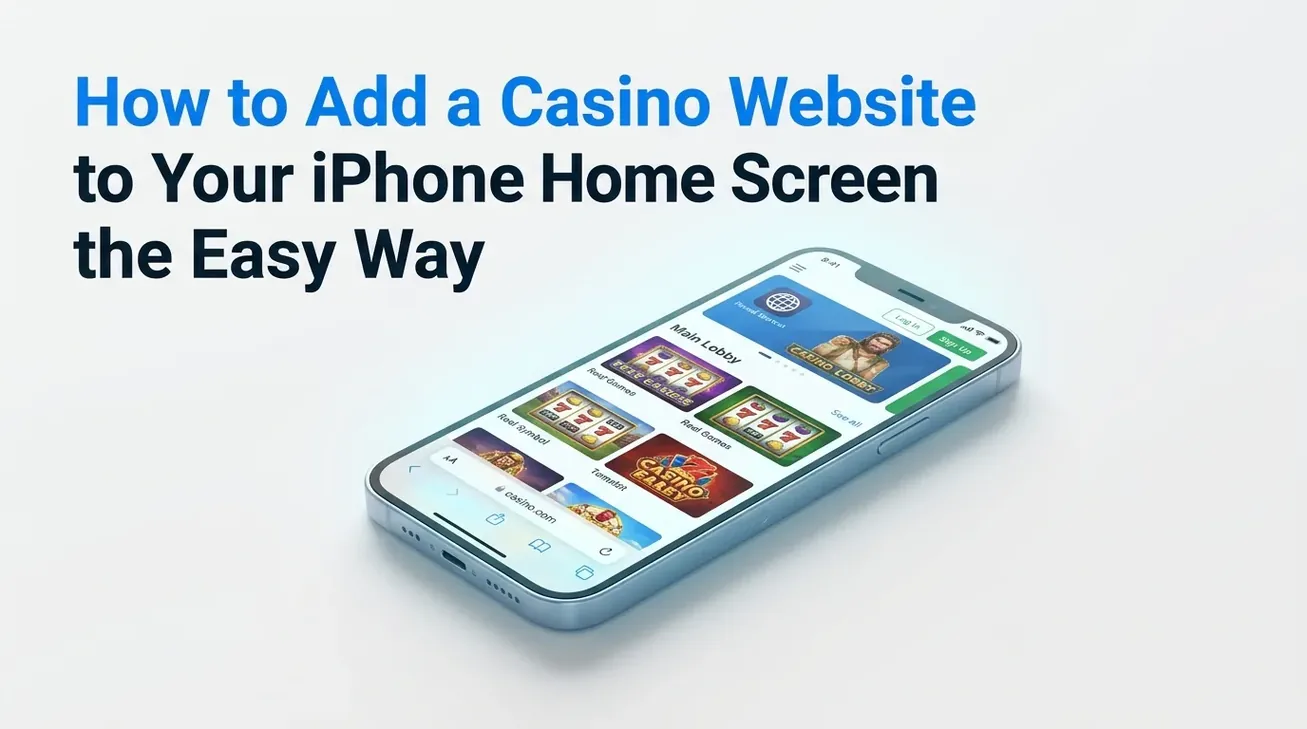
Safari on iPhone allows users to pin a casino website to the Home Screen. Pinning provides faster access without entering the URL each time, and the saved icon acts as a shortcut or a web app. This process does not install any App Store application, and the website remains browser-based. Instructions are provided to complete the setup.
Basics Of Adding An iPhone Casino Site Icon
Check a few basics before you add a casino website icon to your Home Screen. This method uses your browser and works only on the device you set up.
| Aspect | Specific Detail |
|---|---|
| Installation type | No App Store download required |
| Launch method | Tap icon on Home Screen |
| Connection to Safari | Opens through Safari web engine |
| Uses the App Store | Does not use App Store |
| Device specificity | Specific to adding iPhone only |
| How updates occur | Website updates appear automatically |
| Removing the icon | Touch and hold then delete |
| Offline behavior | Requires active internet connection |
| Support for web app mode | Available with Open as Web App toggle |
| Relation to account data | Maintains session through browser storage |
Who Benefits From An iPhone Casino Shortcut
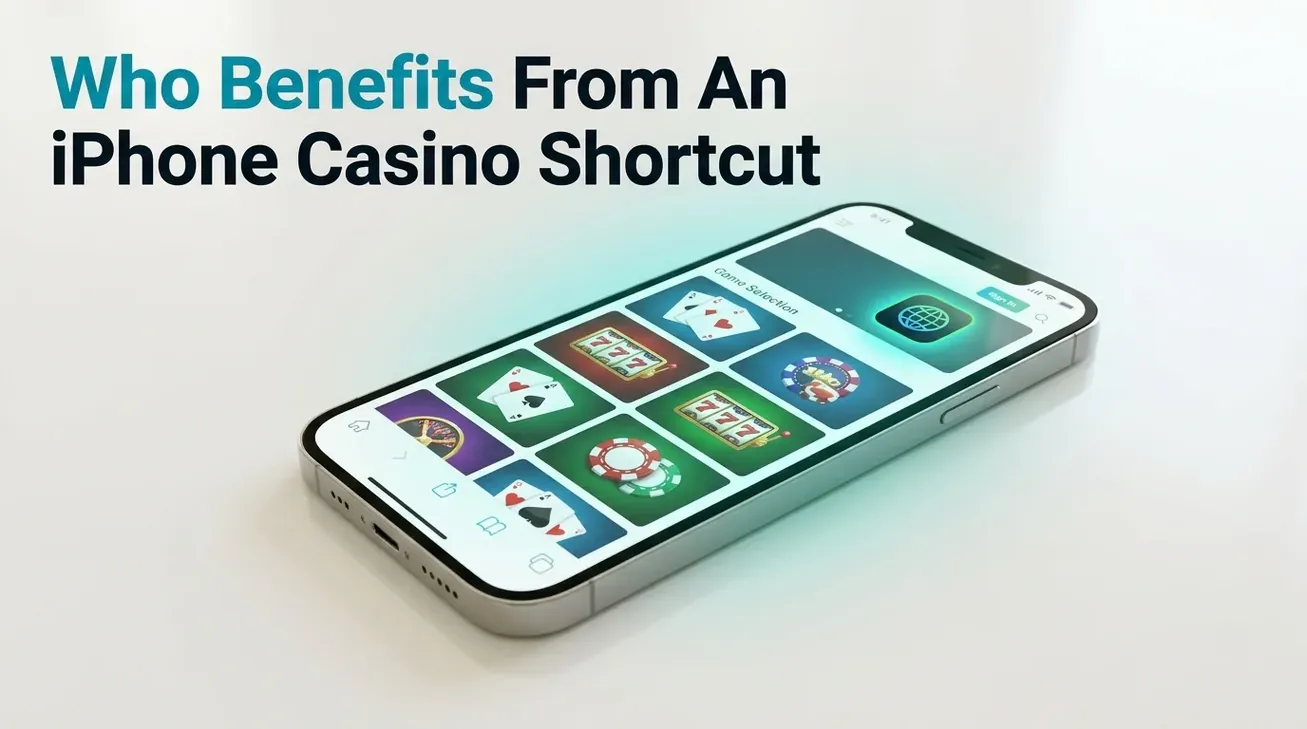
Many iPhone owners in the United States access casino websites through Safari daily. Certain visitors benefit from adding a shortcut to their Home Screen, as frequent players want quick access to casino websites without searching or typing the address repeatedly. The shortcut provides value to specific user types and situations.
- Frequent casino visitors;
- Daily bonus code checkers;
- Multitasking players switching between apps;
- Users avoiding repeated login steps;
- People who dislike typing URLs;
- Players managing several casino accounts;
- Anyone preferring one-tap access.
Device And iOS Needs For Home Screen Casino Icons
To add a casino icon to your Home Screen, use a compatible iPhone with a recent iOS version. Open Safari and make sure there is available space on your Home Screen for the new icon.
- Compatible iPhone model: Any iPhone that runs iOS 16 or newer qualifies;
- iOS 16 or newer: The device must run a current operating system;
- Working Safari browser: Safari must open and load websites;
- Stable internet access: Connection supports full website loading;
- Free icon slot: Home Screen contains available space for new icons;
- Enough device storage: The iPhone has sufficient storage capacity;
- Correctly set date and time: System date and time settings are accurate;
- Region set to United States: The device region matches the casino service area;
- Casino site loads fully: The website completes loading without errors;
- iOS 17 offers improved web app support: Newer versions provide better standalone web app features.
Opening A Casino Website In Safari On iPhone
Launch Safari on your iPhone. Access an online casino website by entering the address in the browser bar. The browser provides direct access to US-facing casino websites.
- Open Safari on your iPhone;
- Tap the address bar at the top or bottom of the screen;
- Type the exact casino website URL into the address field;
- Check that the address shows the secure padlock icon;
- Tap Go on the keyboard to load the casino website;
- Confirm the homepage or lobby loaded fully;
- Verify that the correct US-facing site opened;
- Scroll slightly so the main content becomes visible on your screen;
- Keep the page open in Safari and then use the Share menu.
Using The Safari Share Controls For Casino Sites
Open the casino website in Safari and wait for the website to load completely. The location of the Share button varies based on tab bar configuration, but several details help identify and access the Share button. Use the Share button to access the Add to Home Screen option.
- Square icon with upward arrow: the Share button uses this distinctive visual design;
- Bottom toolbar location: appears with Safari tabs positioned at the screen bottom;
- Top toolbar location: positioned near the address bar with tabs displayed above;
- Visible in tab interface: remains accessible during active browsing;
- Scroll up to reveal toolbars: Safari hides them during page scrolling;
- Tap once to open: single tap activates the Share button;
- Opens actions and sharing: displays Safari’s full menu of options;
- Verify the intended casino website has loaded: then access the controls.
Adding A Casino Website Icon To The Home Screen
Use Safari’s sharing controls to add a casino website to an iPhone’s Home Screen. This shortcut lets users open the site as a web app. Users don’t need to type in the address every time.
- Open the Share menu after the casino website finishes loading in Safari;
- Scroll the action list upward to reveal additional options;
- Locate the Add to Home Screen option among the available actions;
- Tap Add to Home Screen to proceed to the preview screen;
- Review the preview interface showing the shortcut configuration;
- Check the displayed website title and verify the correct URL appears;
- Confirm the casino favicon image appears correctly as the icon artwork;
- Press Add to confirm placement and save the icon;
- Find the new casino icon on the Home Screen after iOS returns to it.
Customizing Name And Open As Web App Settings
After you tap Add to Home Screen, Safari shows options for adjusting the shortcut. Users can select a label to appear beneath the icon and can enable Open as Web App.
- Tap the name field displayed below the icon preview;
- Remove long extra words from the original title;
- Enter a short, readable label to identify the shortcut;
- Make the name match the casino website branding;
- Locate the toggle option labeled Open as Web App;
- Switch the toggle to the on position;
- Understand that web app mode launches the site in a separate window;
- Know that web app mode can use separate storage distinct from Safari cookies;
- Tap Add after adjusting both the shortcut name and the web app mode.
Finding And Launching The New Casino Icon
When you tap Add, iOS returns you to the Home Screen. Follow these steps to find and open your casino shortcut:
- Swipe sideways through Home Screen pages to view all available screens;
- Scan each page for the casino icon artwork you just created;
- Check inside existing folders the new icon can appear there;
- Swipe down from the middle of the Home Screen to open search;
- Type the chosen shortcut name into the search field;
- Tap the matching icon in search results to proceed;
- Open the casino website directly from the Home Screen icon;
- Check whether Safari opens the page or a standalone window appears;
- Note that the display mode depends on settings selected during setup.
Shortcut Versus Web App For Casino Access
You can add a casino website icon to your iPhone Home Screen in two ways: using a browser shortcut or setting up a web app. Each method functions differently when you use the icon.
| Type | Key Behavior |
|---|---|
| Browser shortcut | Opens in Safari tab |
| Web app | Opens in separate window |
| Browser shortcut | Shows full address bar |
| Web app | Hides browser interface completely |
| Browser shortcut | Shares all Safari cookies |
| Web app | Can keep distinct storage |
| Browser shortcut | Relies on Safari controls |
| Web app | Supports push notifications separately |
| Browser shortcut | Closes together with Safari |
| Web app | Closes independently from browser |
| Browser shortcut | Uses standard browser environment |
| Web app | Feels closer to native app |
Casino Account Logins And Session Storage
Several factors influence activity during a casino account session, including the type of storage Safari uses and how the user accesses their account.
- Login persistence depends on how the casino website stores session cookies and whether the user opens the site via a regular shortcut or web app mode;
- Shortcut mode uses Safari cookies;
- Web app can use separate data storage;
- First web app use needs login;
- Logging out in browser affects both;
- Removing website data logs out;
- Private tabs discard sessions;
- Different casinos set timeouts;
- iOS updates can clear data;
- Users should note the entry point they use and check login status to understand session behavior.
Casino Web App Notifications And Extra Functions
Some casino sites use the iPhone Home Screen web app mode, which offers additional features. With recent iOS updates, users can access options for standalone mode.
- Web Push capabilities: Certain casino web apps on recent iOS versions can request Web Push notifications and display icon badges, but capabilities differ by site;
- Push alerts for promotions;
- Badge counts for updates;
- Require allowing notifications first;
- Managed through iOS settings;
- Only in web app mode;
- Not always offered everywhere;
- Turn off at any time;
- Can show account messages.
Managing Or Deleting The Casino Home Screen Icon
You can use the iPhone editing controls to delete or move casino shortcuts on the Home Screen at any time. These steps do not affect App Store apps or website accounts.
- Touch and hold the casino shortcut icon until editing options appear;
- Hold until all icons start to jiggle across the screen;
- Drag the icon to a new position on the current page;
- Move the icon onto another existing icon to create a folder;
- Drop the icon into the chosen folder location;
- Tap the minus symbol on the icon to start removal;
- Confirm that removing deletes only the Home Screen shortcut and usually preserves website data and account information;
- Tap Done to stop editing and return to the normal Home Screen.
Fixing Missing Add To Home Screen For Casino Sites
Safari’s menu structure hides less-frequently accessed controls, which can make it hard to locate required options. Several remedies can restore access to features without advanced technical knowledge. Safari provides built-in customization for revealing and prioritizing specific controls.
- Hidden controls restoration: Add to Home Screen can disappear from the default actions menu after Safari’s available controls exceed visible space – users can restore visibility through manual configuration and menu adjustment without losing website access;
- Scroll actions list completely;
- Tap Edit Actions option;
- Add Add to Home Screen;
- Move it into favorites;
- Use a normal tab, not a private tab;
- Confirm page uses http/https;
- Reload the casino page;
- Disable content blockers temporarily;
- Update iOS and Safari;
- Restart iPhone and retry;
- Special internal pages or restricted URLs cannot receive Home Screen icon placement under any configuration.
Conclusion On Adding Casino Sites To Your iPhone Home Screen
Users can add a casino website to their iPhone Home Screen with Safari to access benefits offered by the site, which are available to users throughout the United States.
- US users can pin casino websites to the Home Screen for rapid access, and the web app mode produces a more app-like interface with separate session storage and notification support;
- No App Store installation required;
- Faster daily casino access;
- Optional standalone web app mode;
- Sessions differ by mode;
- Icons removable anytime.
FAQ
Does The Shortcut Install An App?
The icon creates a Home Screen shortcut that opens the casino site in Safari or as a web app, allowing users to bypass the App Store since installation does not require it.
Does The Casino Login Stay Saved?
Session length is determined by the casino website’s timeout settings and the way Safari manages data. Accessing the site through a Home Screen shortcut or in web app mode can affect how long a user remains logged in.
Can I Add Multiple Casino Icons?
Users can add multiple casino website shortcuts to the Home Screen. Each shortcut can have its own custom label and maintains a separate web app session.